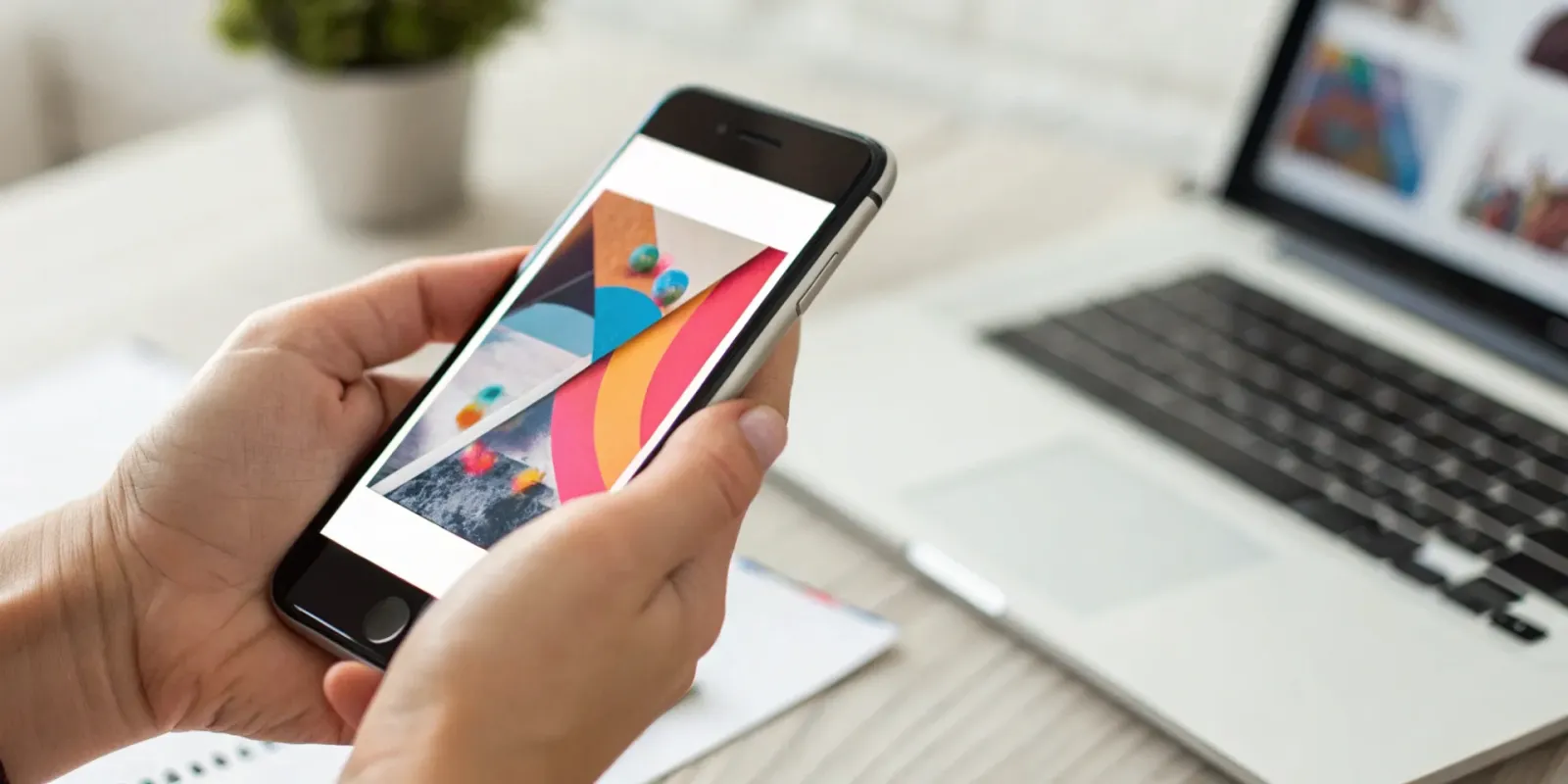
Every flyer has two sides to its story. For the person who sees it, it's a source of information—an event to attend, a deal to grab. For the person who created it, it's a call to action. Traditionally, bridging that gap has been clumsy. You might snap a blurry photo and hope you remember to look it up later. But today, the right app to scan flyers for info can instantly pull event details into your calendar or save contact information. Even more exciting, new technology allows creators to embed interactive experiences directly into the image itself. We'll cover the best apps for both sides of the coin: tools that help you capture information effortlessly and those that let you create engaging, scannable experiences from scratch.
Key Takeaways
- Prioritize apps with smart technology: The best tools use features like Optical Character Recognition (OCR) and automatic image correction to transform a simple picture into a clean, searchable document, saving you from manual data entry.
- Match the app to your mission: Decide what you want to accomplish before you download. Whether you're saving event details, finding coupons, or turning your flyer into an interactive experience with IRCODE, there's a specialized app that will get the job done faster.
- A great scan starts before you tap the button: You can solve most scanning problems by creating the right conditions. Use a flat surface, find good, even lighting to avoid shadows, and hold your phone steady to ensure a crisp, clear result on the first try.
What to Look for in a Great Flyer Scanning App
With so many scanning apps available, it can be tough to figure out which one is right for you. A great app does more than just take a picture of a flyer; it intelligently captures the information you need and makes it easy to use. Instead of just collecting a digital photo of a piece of paper, you should be able to pull out dates, contact info, and links. The goal is to find a tool that works for you, not one that creates more digital clutter. When you're comparing options, focus on a few core areas: the essential features that save you time, the technology that makes information usable, and the security that keeps your data safe.
Key Features You'll Actually Use
When you're looking for a scanning app, it's easy to get distracted by a long list of features you'll never touch. The best apps focus on doing the important things really well. You want a tool that feels intuitive and makes the process seamless from start to finish. According to a review of the best mobile scanning apps, the most effective ones automatically detect a document's edges, take clear scans, and provide simple editing tools. Look for an app that can handle different formats, like business cards or posters, and has clear, upfront pricing without a ton of ads getting in your way. These are the features that make a real difference in how quickly and easily you can capture information on the go.
What is OCR Technology?
One of the most powerful features to look for is Optical Character Recognition, or OCR. This is the technology that transforms a picture of a flyer into usable information. Instead of just having an image of the text, OCR actually reads it. As the experts at SecureScan note, "Most apps can even turn scanned pictures into editable text using something called OCR." This means you can scan a flyer for a local concert and instantly copy the band's name, the venue's address, or the ticket link directly into your calendar or a message to a friend. It's a game-changer that saves you from manually typing out all the details.
How to Keep Your Scans Secure and Private
Whenever you use an app to scan documents, you're creating a digital copy of that information. It's important to know how that data is being handled. Before downloading, take a moment to check the app's privacy policy. A trustworthy app will be transparent about what it does with your scans. For example, the developers of Event Scan state that the app "does not collect any of your personal data." This is the kind of assurance you should look for. You want to be confident that the information you scan—whether it's a simple event flyer or something more sensitive—remains private and secure on your device.
Why Multi-Language Support Matters
If you love to travel or live in a multilingual community, an app with translation capabilities can be incredibly useful. Imagine you're exploring a new city and come across a poster for a street market or a local festival in a language you don't understand. An app with multi-language support can help you make sense of it instantly. For instance, CamFind is a visual search engine that can translate text into different languages, which is perfect for these kinds of situations. This feature makes information more accessible and helps you connect with events and opportunities you might have otherwise missed, all from a quick scan of a flyer.
The Best Apps for Scanning Flyers
Finding the right app to scan a flyer really comes down to what you want to do with the information. Are you trying to save an event to your calendar, snag a coupon for your grocery run, or create a digital copy of a document? The good news is, there's an app for just about every goal. These tools use your phone's camera to pull text and other details from a physical page, saving you from manually typing everything out. It's a simple way to clear the paper clutter from your countertops and make sure you don't miss out on important details.
Some apps are built for specific tasks, like grabbing event information and turning it into a calendar invite with one tap. Others are designed to help you find the best shopping deals by digitizing weekly circulars from your favorite stores. And then there are general-purpose scanning apps that can turn any document, from a flyer to a receipt, into a clean PDF. The most innovative tools, however, go beyond just capturing information—they turn the flyer itself into a gateway for an interactive experience. We'll walk through the best options for each of these scenarios so you can find the perfect fit.
IRCODE: Turn Flyers into Interactive Experiences
While most apps focus on pulling information from a flyer, IRCODE is designed for creators who want to embed an interactive experience into one. Instead of just scanning text, you can create an IRCODE that makes the entire flyer image scannable. When someone points their phone at your flyer, they can be taken directly to a product page, a video trailer, an RSVP form, or a custom landing page. It's a brilliant way for businesses and event organizers to connect the physical and digital worlds, offering a direct path from seeing a poster to taking action. This turns a static piece of paper into an engaging, trackable marketing tool.
Top Apps for Capturing Event Details
Ever walk past a poster for a concert or local festival and make a mental note to look it up later, only to completely forget? Apps like Event Scan are the perfect solution. You simply take a picture of the flyer, and the app uses smart technology to identify key details like the event name, date, time, and location. From there, it helps you create a calendar invite with a single tap. It's an incredibly efficient way to make sure you never miss an event you're interested in. These apps are perfect for students, parents, and anyone who wants to keep their social calendar organized without the hassle of manual entry.
Best Apps for Finding Shopping Deals
If you're always on the lookout for a good deal, a flyer scanning app focused on retail can be a game-changer. Apps like Flyer Scout are designed to help you find discounts, coupons, and weekly brochures from nearby supermarkets and stores. Instead of collecting paper flyers, you can browse them all on your phone, search for specific items, and plan your shopping list to maximize savings. These apps make it easier to use your money more wisely by putting all the local deals right at your fingertips. It's a modern, eco-friendly take on coupon clipping that helps you stay on budget.
Great Solutions for Digitizing Documents
Sometimes, you just need a high-quality digital copy of a flyer or another document. General-purpose mobile scanning apps are perfect for this. They use your phone's camera to create crisp, clear scans of anything from event posters and take-out menus to important receipts and letters. Most of these apps can automatically detect the edges of the paper, correct for perspective, and save the final image as a PDF or JPEG. Many also connect to cloud storage services like Google Drive or Dropbox, making it easy to save, organize, and share your digitized documents from anywhere. They are essential tools for anyone looking to go paperless.
Features for a Perfect Scan
When you're trying to capture information on the go, the right app makes all the difference. A great scanning app does more than just take a picture; it intelligently processes the image to make it clear, searchable, and easy to use. The best ones are packed with smart features that work behind the scenes to save you time and effort. Think of them as your personal assistant for digitizing the world around you. From automatically cleaning up images to understanding the text within them, these are the key features that separate a basic photo app from a powerful scanning tool. Knowing what to look for will help you choose an app that fits seamlessly into your workflow and turns cluttered flyers into organized, actionable information.
Find Edges and Correct Images Automatically
A top-tier scanning app won't just give you a flat photo of a flyer. It will instantly find the document's edges, crop out the noisy background (like the table it was sitting on), and automatically straighten the image. Many apps also adjust the brightness and contrast to make the text pop, creating a clean, professional-looking digital document. This is a huge time-saver. As noted by experts, "Dedicated scanning apps automatically crop, straighten, brighten, and recognize text, saving you a lot of time and effort." This means you get a perfect scan on the first try without having to manually edit each image.
Check for Text Recognition Accuracy
This is where the real magic happens. The best apps use Optical Character Recognition, or OCR technology, to read the text in your scanned flyer. This converts the image of words into actual, editable text that you can copy, paste, and search for later. When you're looking for an app, check how accurate its OCR is. High accuracy means you can quickly find a specific flyer by searching for a keyword, like the name of a band or a coffee shop. It's the feature that turns a simple image file into a searchable database of information right on your phone.
Connect to Cloud Storage
What good is a digital file if you can only access it on one device? Leading scanning apps let you connect to your favorite cloud storage services like Google Drive, Dropbox, or iCloud. With this feature, your scans are automatically saved and synced across all your devices. You can scan a flyer with your phone while you're out and have it instantly appear on your laptop back at the office. This not only keeps your information accessible but also serves as a secure backup, so you never have to worry about losing an important contact or event detail.
Use Smart Tools to Stay Organized
Beyond just scanning, look for apps with smart tools that help you stay organized. Some apps can automatically detect dates, phone numbers, and email addresses on a flyer and let you create a calendar event or add a new contact with a single tap. This is incredibly efficient, as users often report that these features save them from having to "manually type in event details." Other organizational tools might include the ability to create custom folders, add tags to your scans, or merge multiple scans into a single PDF, helping you keep all your captured information tidy and easy to find.
Scan Without an Internet Connection
You won't always have a stable internet connection when you come across a flyer you want to save. A reliable scanning app should allow you to capture and save images even when you're offline. While some advanced features, like searching the web for related content, might require you to be online, the core functionality of scanning, cropping, and saving should work anywhere. This ensures you can always capture information in the moment, whether you're at a crowded festival with spotty service or on the subway. You can then let the app sync or upload your scans later when you're back on Wi-Fi.
How to Pick the Right App for You
With so many options out there, finding the perfect scanning app can feel like a chore. The truth is, the "best" app is the one that fits seamlessly into your life and helps you get things done. Instead of just downloading the first one you see, taking a moment to think about what you really need can save you from a folder full of apps you never open. A few key considerations can help you find a tool you'll actually enjoy using, turning the task of scanning from a hassle into a simple, satisfying click.
Think about what you'll be scanning most often. Are you a student trying to digitize textbook pages and lecture notes? A small business owner capturing receipts for expense reports? Or a creative person snapping photos of flyers for inspiration and event details? Each of these scenarios calls for slightly different features. The key is to match the app's capabilities to your real-world tasks. By looking at a few specific areas—like the balance of free and paid features, device compatibility, interface design, developer support, and real user feedback—you can move past the marketing hype and find an app that truly works for you. It's less about finding a one-size-fits-all solution and more about discovering your perfect digital partner for capturing information on the go.
Compare Free vs. Premium Features
Most scanning apps operate on a freemium model, offering a solid set of basic tools for free with advanced features behind a paywall. Before you commit, figure out your non-negotiables. Do you just need to capture flyer info occasionally, or are you digitizing a mountain of documents for work? As one review of scanning apps points out, a free version might offer unlimited scans, while a paid plan unlocks the ability to edit text or export to different file formats. Think about whether those premium perks are worth the monthly subscription for your specific projects. If you only need basic scanning, a free version is likely all you'll ever need.
Check for Platform Compatibility
This might seem obvious, but it's a step people often forget. The last thing you want is to get excited about an app's features only to find out it doesn't work on your devices. Before you hit download, check the app's requirements in the App Store or Google Play. For example, an app like Event Scan clearly lists that it needs iOS 15.6 or newer to run on an iPhone. If you switch between a phone, tablet, and laptop, you might also want an app that syncs your scans across all your platforms. A quick check for compatibility will save you a ton of frustration down the line.
Find an Interface You Like
An app can have all the bells and whistles, but if it's clunky and confusing, you're not going to use it. A great user interface should feel intuitive from the moment you open it. Look for an app that is designed to be fast and easy to use, with a clean layout and straightforward controls. Check out screenshots and watch demo videos if they're available to get a feel for the workflow. Your scanning app should make your life easier, not give you a headache every time you try to capture a flyer. A simple, elegant design often translates to a more efficient and enjoyable experience.
Look for Good Support and Updates
A well-maintained app is a sign of a trustworthy developer. Check the app's version history to see how often it's updated—regular updates usually mean bug fixes, security patches, and new features. It's also important to choose an app that respects your privacy. Look for a clear privacy policy that explains what data, if any, is collected. A developer who states that the app does not collect any of your personal data shows a commitment to user security. Good support options, like a help center or a responsive contact email, are also a great sign that you'll have help if you ever run into an issue.
Read User Reviews and Ratings
User reviews are your secret weapon for getting the real story on an app's performance. A high star rating is a good start, but the comments are where you'll find the gold. Look for patterns in what people are saying. Are users consistently praising the app's text recognition accuracy? Are they complaining about frequent crashes after a recent update? Reading a mix of positive and negative reviews will give you a balanced picture of the app's strengths and weaknesses, helping you make a much more informed decision than you could from the official description alone.
Clever Ways to Use Your Scanning App
Scanning apps are for so much more than just digitizing receipts for your expense reports. When you have a powerful scanner in your pocket, you can turn any piece of paper into a dynamic, useful digital file. Think of it as a bridge between the physical world and your digital life. Instead of letting paper flyers, posters, and documents pile up, you can transform them into organized, actionable information that lives right on your phone. This simple shift helps you declutter your space and your mind, ensuring important details are never lost in a stack of mail again. From managing your social calendar to saving money at the grocery store, here are some clever ways to put your scanning app to work.
Track Sales and Promotions
How many times have you seen a flyer for a great deal, only to forget about it by the time you get to the store? Instead of stuffing paper coupons into your wallet, use a scanning app to capture them. You can create a digital folder of all current promotions, so when you're planning your shopping trip, you have every discount at your fingertips. Some apps can even help you find deals and discounts from local supermarkets, making it easier to plan your budget and shop smarter. It's a simple way to ensure you never miss out on a chance to save.
Manage Event Information
You're walking down the street and spot a poster for a local festival or a concert you'd love to attend. Instead of taking a blurry photo you'll forget about later, you can scan it. Many scanning apps use technology to recognize the key details—like the date, time, and location—and package them up for you. This turns a static flyer into an actionable piece of information. You can instantly add events to your calendar without having to manually type a single word, ensuring that cool event you spotted actually makes it into your schedule.
Create Searchable Archives
A good scanning app does more than just take a picture of a document; it creates a high-quality, searchable PDF. This is a game-changer for organization. Think about all the paper in your life: recipes clipped from magazines, important notices from your kid's school, warranties for new appliances, or even old family letters. By scanning them, you're not just decluttering your home; you're building a personal, searchable database. The next time you need to find that one specific recipe, you can simply search for a keyword instead of digging through a messy pile of papers. It's one of the best ways to go paperless and keep your information organized.
Integrate with Your Calendar
The real magic happens when your scanning app works seamlessly with the other tools you use every day. Capturing event details from a flyer is one thing, but being able to add them to your calendar with a single tap is what makes the technology so powerful. This integration saves you time and reduces the chance of errors from manual data entry. A great app will connect directly with your phone's native calendar, whether it's Google Calendar or Apple Calendar. This creates a smooth workflow from spotting a flyer in the wild to getting a reminder on your phone just before the event begins.
Share and Work with Others
Scanned information isn't meant to live in a silo. Once you've digitized a flyer, document, or photo, it's incredibly easy to share it with others. You can scan a poster for a community cleanup day and send it to your neighborhood group chat, or digitize a meeting agenda and share it with your team on Slack. This makes collaboration effortless, turning a physical piece of paper into a digital asset that anyone can access. Some apps even let you save your findings to a profile, making it simple to share interesting discoveries with your friends and family.
Solving Common Scanning Problems
Let's be real: even with the best app, scanning doesn't always go perfectly on the first try. You might end up with a blurry image, text that the app can't read, or a digital file that gets lost in a sea of other documents. It happens to all of us. But a few simple adjustments can make a world of difference and turn a frustrating experience into a smooth one. Think of these common issues not as roadblocks, but as small hurdles you can easily clear with the right approach.
Whether you're dealing with tricky lighting, a crumpled flyer, or a huge stack of papers from a conference, there's usually a straightforward fix. The key is to understand what causes these problems in the first place. From there, you can learn how to get ahead of them. In this section, we'll walk through the most frequent scanning hiccups and give you actionable tips to solve them. You'll learn how to get crisp, clear scans every time, handle different materials like a pro, and keep all your new digital information perfectly organized and easy to find.
How to Improve Scan Quality
A great scan starts with a great photo. Before you even tap the scan button, make sure your flyer is on a flat, contrasting surface. Good, even lighting is your best friend here—natural light from a window is ideal, but a well-lit room works, too. Try to avoid casting shadows over the document with your phone. Once you have your setup, hold your phone steady and parallel to the flyer. Most modern scanning apps are designed to help you with the rest, as they can automatically crop and straighten images, saving you a ton of manual effort and ensuring your final scan is clear and legible.
Handle Different Types of Paper
Not all flyers are created equal. Some are printed on glossy paper that creates a glare, while others might be on thick cardstock or thin, crinkled paper. For glossy surfaces, try tilting your phone slightly to minimize reflections from overhead lights. If a flyer is crumpled, do your best to flatten it out first. While mobile apps are incredibly versatile, it's good to know their limits. For very important documents that need to be preserved perfectly or for scanning huge stacks of paper, a dedicated desktop scanner might still be the better choice for achieving archival quality.
Manage Large Batches of Scans
If you've just returned from a trade show with a tote bag full of flyers, scanning them one by one can feel like a monumental task. Many apps offer a batch scanning mode that lets you capture multiple pages in one continuous session, which is a huge time-saver. However, it's important to match your tools to your needs. Mobile apps are fantastic for personal and occasional use, but they aren't always enough for businesses that need to scan many documents. If you find yourself constantly managing large volumes, you might want to explore a more professional document management system.
Troubleshoot Recognition Errors
Optical Character Recognition (OCR) is the magic that makes the text in your scans searchable and editable, but it's not always flawless. If your app is struggling to read the text on a flyer, the first step is to check your scan quality. A blurry or poorly lit image is the most common culprit. Funky fonts, low-contrast text, or handwritten notes can also cause issues, as most apps struggle to accurately recognize handwriting. If you get an error, try rescanning in better light or from a different angle. For crucial information, it's always a good idea to give it a quick proofread and make any manual corrections needed.
Organize Your Extracted Data
Capturing information is only useful if you can find it later. Without a system, your digital files can become just as cluttered as a pile of papers on your desk. Take a moment after scanning to name your files clearly and consistently. Most apps allow you to create folders or add tags to categorize your scans—use them! You can also connect your app to cloud storage services like Google Drive or Dropbox. This not only backs up your files but also makes them accessible from any device, ensuring your important information is always organized and just a few clicks away.
Pro Tips for Power Users
Once you've gotten the hang of scanning flyers and documents, you can start exploring more advanced features that save you serious time and effort. Think of your scanning app as more than just a digital camera; it's a command center for the information you collect in the real world. By using features like batch processing, automation, and app integrations, you can create a seamless flow of information from a physical piece of paper directly into your digital life, all with just a few taps.
These tips are for anyone ready to move beyond the basics and turn their scanning app into a true productivity powerhouse. Let's get into how you can make your app work smarter, not harder.
Use Batch Processing to Save Time
If you've ever returned from a conference or a community event with a stack of flyers, business cards, or receipts, you know how tedious it can be to scan them one by one. This is where batch processing becomes your best friend. Instead of scanning, saving, and then starting over with the next item, batch mode lets you capture multiple pages or documents in a single session. You just keep scanning, and the app groups them all together.
Most modern mobile scanning apps offer this feature, and it's a total game-changer. You can digitize an entire pile of papers in a fraction of the time. Once you're done capturing everything, you can then review, edit, and save the entire batch as a single file or as individual documents. It's perfect for getting through a large volume of scans quickly and efficiently.
Find Ways to Automate Your Workflow
Imagine scanning a flyer for a concert and having the event automatically added to your calendar. Or scanning a receipt and having it instantly sent to your expense-tracking folder in the cloud. This isn't science fiction; it's the power of workflow automation. Many scanning apps allow you to set up rules that trigger specific actions once a scan is complete, eliminating tedious manual steps.
By taking a few minutes to automate your workflow, you can create a system that organizes your information for you. Look for features that let you pre-define naming conventions, automatically sort scans into specific folders based on keywords, or send data to other apps. This turns your scanning process from a simple capture tool into an intelligent assistant that handles the busywork.
Manage Your Cloud Storage
High-quality scans can take up a surprising amount of space on your phone. Instead of letting them clog up your device's memory, connect your scanning app to a cloud storage service. Most apps integrate seamlessly with popular platforms like Google Drive, Dropbox, iCloud, and OneDrive. This not only frees up space on your phone but also makes your scans accessible from any device, anywhere.
Another huge benefit is searchability. When you save scans to the cloud, the app's OCR technology often makes the text within the document searchable. This means you can later search for a flyer from that coffee shop or a specific receipt just by typing a keyword into your cloud drive's search bar. It's like having a digital filing cabinet that you can access and organize from anywhere.
Sync Your Scans Across Platforms
Your workflow doesn't always start and end on your phone. You might scan a flyer while you're out and about but want to use that information on your laptop or tablet later. The best scanning apps offer multi-platform syncing, ensuring your scans are available and consistent across all your devices. This means no more emailing files to yourself or fumbling with cables to transfer documents.
When you choose an app with robust syncing capabilities, you can capture an image on your phone, and it will instantly appear in the app on your desktop. This is incredibly useful for tasks that are easier on a larger screen, like editing a scanned document, extracting large blocks of text, or organizing files into a project folder. It creates a fluid and uninterrupted experience, letting you work seamlessly no matter which device you're using.
Integrate with Your Other Favorite Apps
A great scanning app doesn't exist in a vacuum—it plays well with the other tools you rely on every day. App integrations are the key to building a truly powerful and personalized productivity system. By connecting your scanning app to other software, you can move information where it needs to go without any extra steps. For example, you could send contact information from a scanned business card directly to your CRM or contacts list.
Look for integrations with your calendar, note-taking apps like Evernote or Notion, or project management tools like Trello or Asana. These connections allow you to centralize your work and turn the static information from a flyer into an actionable item. A scan can become a to-do list item, a calendar event, or a note in a research project, making it a dynamic part of your digital life.
Frequently Asked Questions
Why can't I just take a picture of a flyer with my phone's camera?
You certainly can, but a dedicated scanning app does so much more than your camera app. It intelligently finds the edges of the flyer, crops out the background, and corrects the perspective so you get a clean, flat document instead of a crooked photo. The real advantage is that it makes the information on the flyer usable, allowing you to copy text or create calendar events directly from the scan.
What exactly is OCR, and why does it matter for scanning a flyer?
OCR stands for Optical Character Recognition, and it's the technology that reads the text within your scanned image. Instead of just having a picture of words, OCR converts them into actual, searchable text. This means you can scan a flyer for a concert and then later find it on your phone by searching for the band's name. It's what turns a simple image into a smart, organized piece of information.
How is IRCODE different from the other scanning apps you mentioned?
Most scanning apps are designed to pull information from a flyer that already exists. IRCODE is a tool for creators who want to build an interactive experience into their own flyer. With IRCODE, the entire image becomes a scannable code that can lead people directly to a website, video, or online shop. It turns a static piece of paper into an engaging and trackable marketing tool.
Do I need an internet connection to use a scanning app?
For the most part, no. The core function of capturing and saving a scan can usually be done completely offline. This is great for when you're at a festival or on the subway with spotty service. You will, however, need an internet connection for features that require it, like syncing your scans to the cloud or sharing them with others.
What's the best way to organize my scans so I can actually find them later?
The key is to create a system from the start. Get into the habit of giving your scans clear, descriptive names right after you capture them. Make use of the app's built-in organizational tools, like creating folders for different categories such as "Recipes," "Work Events," or "Coupons." Connecting your app to a cloud storage service also helps by creating a secure, searchable archive of all your important information.