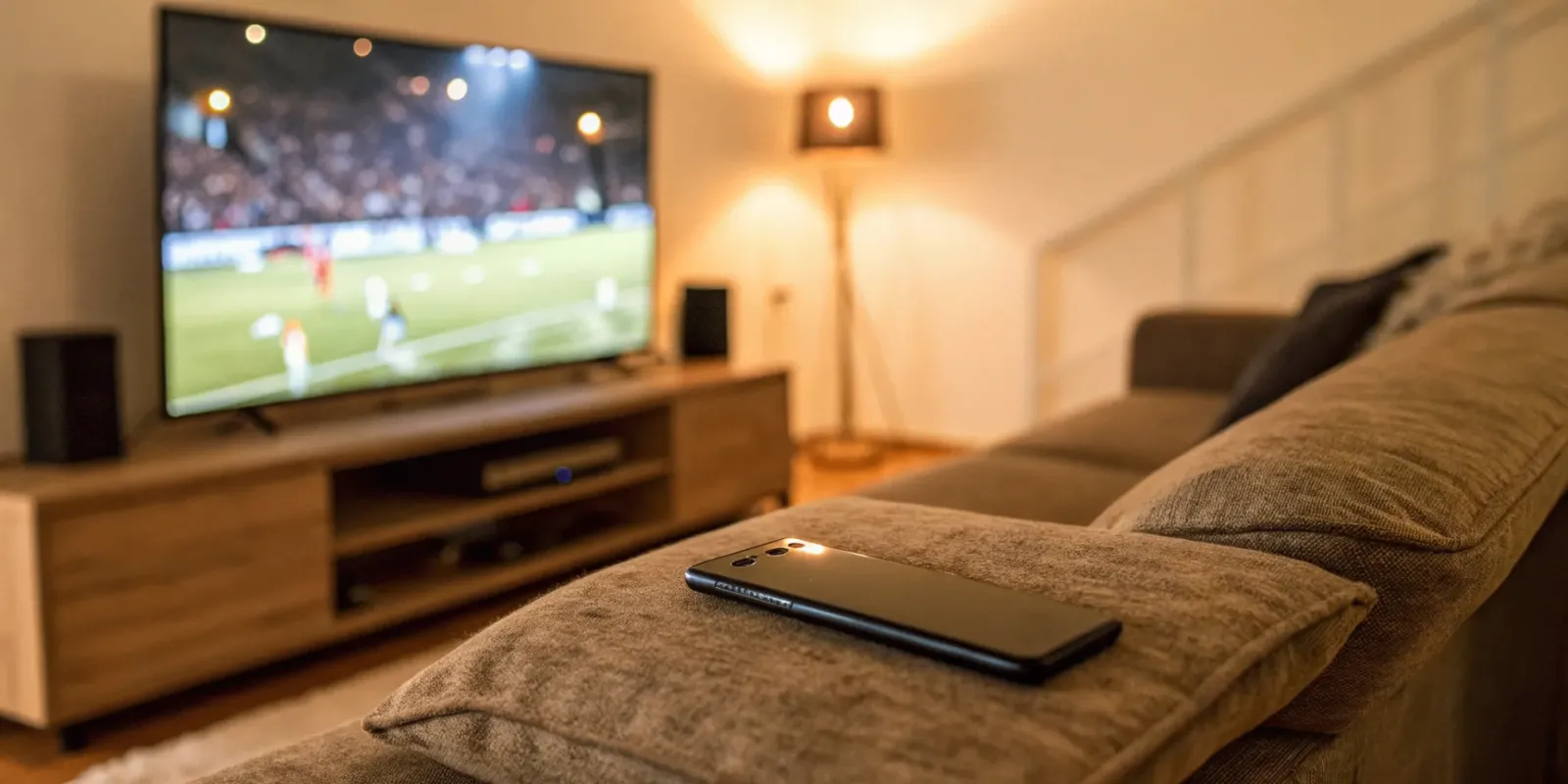
We all do it: watch TV with our phones in hand, scrolling through social media or looking up an actor's filmography. But what if that second screen could do more than just distract you? What if it could connect directly to what you're watching, turning passive viewing into an active, engaging experience? That's the power of syncing your devices. It transforms your phone into a companion screen for real-time stats, live chats, or even shopping for products you see in a show. This guide breaks down exactly how to sync app with live television, covering everything from simple screen mirroring to creating a fully interactive setup.
Key Takeaways
- Match Your Connection to Your Gear: A smooth experience starts with picking the right method for your devices—like AirPlay, Chromecast, or a direct HDMI cable—and making sure everything is on the same Wi-Fi network.
- Go Beyond Mirroring with Interactive Tools: Turn passive viewing into an active experience by using features like live chats, real-time polls, and second-screen content to create a more engaging and communal event.
- Optimize Your Setup for a Flawless Stream: Fix common problems like audio lag through your TV's settings and fine-tune your content recommendations by rating shows to create a seamless and personalized viewing experience.
What is App-to-TV Syncing?
Have you ever been watching a show and wished you could instantly get more info on your phone, or seamlessly fling a video from your small screen to the big one? That's the magic of app-to-TV syncing. It's all about connecting your mobile device or computer to your television, creating a single, unified experience. Instead of two separate devices, they work together, allowing you to share, control, and interact with content in a much more dynamic way. This connection turns passive viewing into an active, engaging session.
How Live TV Integration Works
At its core, live TV integration works by having your devices talk to each other over the same Wi-Fi network. When your phone and TV are on the same network, an app can send signals to the TV, telling it what to play, when to pause, or what information to display. This process relies on cross-device synchronization to create a consistent and uninterrupted experience. So, if you start watching a live event on your tablet and then decide to move to the living room, you can cast it to the TV and pick up right where you left off without missing a beat. It's all about making technology feel intuitive and seamless.
The Benefits of Connecting Your Screens
Connecting your screens does more than just put your phone's content on a bigger display. For creators and app developers, it's a powerful way to increase app engagement and keep users tuned in longer. When you offer a smooth, integrated viewing experience, you're giving users a reason to stay within your app's ecosystem. For viewers, it adds a layer of convenience and control that makes watching live TV feel more modern and personalized. This feature can make any app feel like one of the best streaming apps by simply improving the overall user experience.
Popular Syncing Features
Once your devices are synced, a whole new world of features opens up. Your phone can become a super-powered remote, letting you pause, rewind, and browse content with a simple tap. But it goes beyond basic controls. Many apps offer second-screen experiences, where your phone displays supplemental content like player stats during a sports game or actor bios during a movie. One of the most popular additions is real-time chat, which lets you connect with other fans and discuss what's happening on screen as it unfolds. These features transform a solo activity into a shared, communal event.
How to Interact in Real-Time
Syncing your app with live TV is the gateway to true real-time interaction. Imagine voting in a reality show competition directly from your phone or participating in a live poll that instantly appears on your screen. This technology allows you to interact with live content in exciting new ways, breaking down the barrier between you and what you're watching. For creators, this opens up opportunities for live Q&As, interactive storytelling, and even scannable on-screen graphics that let viewers shop for products or access exclusive content. It's about making the viewing experience more immersive and participatory for everyone involved.
Choose Your Connection Method
Getting your app content from your phone to your TV screen is easier than ever, but the right method depends on the gear you already have. Think about your phone, your television, and your Wi-Fi network. Do you have a smart TV? Are your phone and TV from the same brand? Is your internet connection strong? Answering these questions will point you toward the best solution for a seamless, synchronized experience.
Whether you prefer a wireless setup or the reliability of a physical cable, there's a connection method that will work for you. We'll walk through the most common options, from simple screen casting to using dedicated streaming devices, so you can get your interactive content up on the big screen and start engaging with your audience in a more dynamic way.
Screen Mirroring and Casting
Screen mirroring and casting are two of the most popular wireless methods for sending content from your phone to your TV. Casting lets you send a specific video or app to your TV while still using your phone for other things. For most Android users, you can simply open an app like YouTube, tap the 'Cast' icon, and select your TV. If you have an iPhone, AirPlay is your go-to. It works seamlessly with an Apple TV or any smart TV that supports AirPlay 2, letting you stream content with just a couple of taps. This is perfect for quickly sharing a video or presentation without fussing with wires.
Smart TV Apps
If you have a smart TV, you likely have access to an app store right on your television. This is one of the most direct ways to sync your experience, as you can often download the same apps you use on your phone. For an even more integrated setup, using a phone and TV from the same manufacturer can offer special features. For example, you can connect your Samsung phone to your Samsung Smart TV using the SmartThings app. This connection allows you to easily mirror your screen or use your phone as a remote, creating a unified and user-friendly system for managing your content across devices.
External Streaming Devices
Don't have a smart TV? No problem. An external streaming device can give any TV with an HDMI port smart capabilities. Gadgets like a Roku, Chromecast, or Amazon Fire TV Stick plug directly into your TV and connect to your Wi-Fi, giving you access to thousands of apps. These devices are also great for more advanced setups. For instance, if you want to sync smart lights with what's happening on screen, you'll often need an external device to process the video signal. This method gives you a ton of flexibility and is a fantastic way to modernize an older television set.
HDMI and Cable Connections
When you need a rock-solid connection that won't drop, nothing beats a direct cable. This is the ideal solution if your Wi-Fi is spotty or if you're in a location without a network. To connect your phone to your TV with a wire, you'll typically need an HDMI adapter that fits your phone's charging port and a standard HDMI cable. It's a plug-and-play approach that mirrors your phone's screen directly on the TV. While it's not wireless, the reliability and lag-free performance make it a great choice for live presentations or interactive sessions where every second counts.
How to Set Up Your Connection
Once you've picked your connection method, it's time to get everything working together. This part can feel a bit technical, but it's really just a matter of checking a few boxes to make sure your devices can communicate smoothly. Think of it as introducing two friends you know will get along—you just have to make the initial connection. Follow these steps to create a stable and reliable link between your app and your TV.
Check Your Network Requirements
Your Wi-Fi network is the invisible bridge that connects your phone to your TV. If that bridge isn't stable, you'll run into frustrating issues like buffering or a connection that keeps dropping. The most important rule is that most connection methods require your phone and TV to be on the same Wi-Fi network. This ensures they can find and communicate with each other instantly. Before you start, take a moment to confirm both devices are logged into the same home network. If you experience lag, you might also want to check your internet speed or move your router closer to your devices for a stronger signal.
Create a Device Compatibility Checklist
Not all devices are designed to work together seamlessly, especially if they're from different brands. A quick compatibility check can save you a lot of headaches later. For example, you can easily connect your Samsung smartphone to your Samsung Smart TV using their dedicated app. If you have devices from different manufacturers, check their support websites or manuals for compatibility information. Look for terms like AirPlay (for Apple devices), Miracast (for Android and Windows), or Chromecast built-in. Making a quick list of your devices and their supported technologies will help you confirm they can speak the same language.
Find the Right Apps and Software
The right app acts as the translator between your phone and your television. Many streaming apps have built-in casting or mirroring features that make syncing simple. For instance, when you watch YouTube on your smart TV, you can use your phone as a remote to browse, select, and control videos on the big screen. This gives you a much better viewing experience with higher-quality picture and sound. Make sure your apps are updated on both your phone and your smart TV or streaming device, as updates often include performance improvements and new features for syncing.
Explore Multi-Screen Setups
Syncing your app with live TV opens up a world of multi-screen possibilities. This isn't just about putting your phone screen on the TV; it's about creating an interactive environment where both screens work together. This concept, known as cross-device synchronization, ensures you have a consistent and engaging experience whether you're looking at your phone or the television. You could follow a live sports game on TV while viewing player stats in an app, or shop for products you see in a show in real-time. This setup turns passive viewing into an active, engaging experience.
Tips to Optimize Your Network
Even with a perfect setup, you might run into small glitches, like the audio and video falling out of sync. This is a common issue, especially over Wi-Fi, but it's usually easy to fix. To resolve audio sync problems, go into your TV's audio settings and look for an option called "Lip Sync" or "Audio Delay." This feature lets you manually adjust the timing so the sound perfectly matches the picture. If you're still having trouble, try restarting your router, phone, and TV. A simple reboot can often clear up any minor network conflicts and help you stream from your phone to your TV without a hitch.
Key Features for Live TV Apps
When you're syncing an app with your TV, the experience is about more than just getting a picture on a bigger screen. The best live TV apps are packed with features designed to make your viewing seamless, interactive, and tailored just for you. These aren't just bells and whistles; they're tools that transform how you watch and engage with live content. From picking up a show where you left off on another device to chatting with fellow fans during a game, these key features are what separate a good app from a great one. Let's look at the must-haves that create a truly connected viewing experience.
Cross-Device Synchronization
Ever started watching a movie on your living room TV, then wanted to finish it on your tablet in bed? That's cross-device synchronization in action. This feature ensures you have a consistent viewing experience no matter which device you're using. It remembers your watch history, preferences, and even where you paused, so you can switch from your phone to your laptop to your smart TV without missing a beat. It's all about convenience, letting your content follow you from room to room. The goal of these advanced streaming features is to make your experience so smooth that you don't even have to think about it. The app just knows where you were, letting you get right back to your show.
Interactive Tools and Features
Live TV is no longer a one-way street. Modern apps are built for engagement, turning passive viewing into an active experience. The most common live streaming app features include real-time chat, allowing you to share comments and reactions with other viewers during a broadcast. Many apps also integrate live polls, Q&A sessions with hosts, and even interactive overlays where you can click to learn more about a product or topic on screen. For creators and brands, these tools are a powerful way to build a community and get instant feedback from their audience. For viewers, it makes watching live events feel more like a shared, communal experience.
Cloud DVR and Recording
Life is busy, and you can't always catch your favorite shows or sports games live. That's where a Cloud DVR (Digital Video Recorder) comes in. This feature lets you record live programming and save it to the cloud, so you can watch it whenever you want. Unlike a physical DVR box, there's no limit to how much you can store, and you can access your recordings from any of your synced devices. It's a simple but essential tool for making sure you never miss out. Providing a Cloud DVR feature gives you the freedom to watch on your own schedule, turning live TV into on-demand content that's ready when you are.
Personalized Content Discovery
Endless scrolling to find something to watch is a drag. That's why personalized content discovery is such a critical feature. Using your viewing history and preferences, the app's recommendation engine suggests new shows, movies, and live events it thinks you'll enjoy. This makes it easier to find hidden gems and new favorites without all the work. A good app learns what you like and gets smarter over time, creating a curated home screen that feels like it was made just for you. This level of personalization is key to the future of entertainment, helping you spend less time searching and more time watching content you actually love.
Social Viewing Options
Watching a big game or a season finale is always more fun with friends. Social viewing features bring that shared experience into the digital world. Many apps now offer "watch party" or "co-watching" modes that let you sync a stream with friends and family in different locations. You can chat in a private window right alongside the video, so it feels like you're all in the same room. These interactive features enhance engagement by making viewing a more connected and social activity. It's a fantastic way to share big moments and reactions in real-time, no matter how far apart you are.
Fix Common Syncing Problems
Even with the best setup, you might run into a few hiccups when syncing your app with live TV. It's frustrating when technology doesn't cooperate, but most syncing problems have simple solutions. From a spotty network connection to audio that's just a little off, a few quick adjustments can usually get you back on track. Let's walk through some of the most common issues and how to solve them so you can get back to enjoying your show.
Solve Network Connectivity Issues
One of the most frequent reasons for a failed connection is that your devices aren't on the same Wi-Fi network. Your phone and your TV (or streaming device) need to be on the same network to communicate with each other. If you're having trouble, the first step is to double-check the network settings on both devices. Sometimes, a phone might automatically connect to a different network or a 5G signal instead of your home Wi-Fi. Ensuring they're on the same network is crucial to stream content without interruptions.
Fix Audio and Video Lag
Have you ever watched a show where the actors' lips are moving, but the sound doesn't quite match? This is a classic audio lag issue, and it can be really distracting. Luckily, most modern TVs have a built-in fix for this. Go into your TV's audio settings and look for an option called "Lip Sync" or "Audio Delay." This feature lets you manually adjust the timing of the audio. You can tweak the delay bit by bit until the sound perfectly matches the picture, resolving those pesky audio sync issues.
When Your Devices Won't Connect
If your devices just refuse to see each other, the problem might be brand-specific. Many manufacturers, like Samsung, have their own apps designed to make connecting their devices seamless. For example, you can connect your Samsung smartphone to your Samsung Smart TV using the SmartThings app. When you try to connect, pay close attention to your TV screen. A message might pop up asking for permission to connect. Always make sure to accept these prompts to establish a secure link between your devices.
Address Performance and Latency
Latency, that annoying lag or buffering symbol, can ruin a live viewing experience. This often comes down to your network's performance. To improve it, try closing other apps running in the background on your phone or tablet, as they can consume bandwidth. It also helps to make sure your Wi-Fi router isn't too far from your TV or streaming device. A simple restart of your phone, TV, and router can also work wonders. Good cross-device synchronization is key to a consistent experience and enhancing user convenience.
Find App-Specific Solutions
Sometimes, the issue isn't with your TV or network but with the app itself. Every app is built differently, and some have unique requirements or known bugs. The best place to look for answers is within the app's help section or on its official website. Developers often provide detailed FAQs and troubleshooting guides tailored to their software. Finding these app-specific solutions can dramatically improve your user experience and get you back to watching your favorite content without any more trouble.
Get the Most Out of Your Viewing Experience
Once you've connected your app and TV, the real fun begins. Syncing your devices is just the first step; the next is to create a viewing experience that's truly tailored to you. It's about more than just watching a show on a bigger screen—it's about making your content more interactive, social, and seamless. By exploring the features your apps offer, you can move from being a passive viewer to an active participant. Think of it as curating your own personal entertainment hub, where everything from the content recommendations to the on-screen interactions is exactly how you want it. Let's look at a few ways you can make your synced setup work harder for you.
Manage Multiple Devices
A great synced experience feels effortless as you move through your day. Look for features that support cross-device synchronization, which ensures a consistent experience no matter where you're watching. This allows you to start a movie on your tablet during your commute and pick it up right where you left off on your smart TV when you get home. It also means your watchlists, history, and preferences are the same everywhere. This simple feature removes the friction from your viewing habits, making it easier to keep up with your favorite shows without having to remember your spot or search for your content on each new device.
Use Real-Time Engagement Tools
Live events are much more exciting when you can share the experience with others. Many live streaming apps now include chat features that let you comment and react alongside other fans. Whether you're watching a sports game, a product launch, or a live concert, these tools bring a social element to your screen. You can share your thoughts, participate in polls, and see what the streamer and other viewers are saying in the moment. It transforms a solo activity into a communal event, letting you connect with a wider community without ever leaving your couch.
Customize Your Settings
Don't settle for the default settings. Take a few minutes to explore the customization options within your app to create a more comfortable and engaging environment. This can include adjusting video quality to match your internet speed, turning on subtitles, or choosing a preferred audio language. Some apps even let you change the look of the interface. Providing these features helps increase app engagement and makes your experience feel more personal and professional. By tailoring these settings, you build a viewing setup that's perfectly suited to your needs and preferences.
Integrate Your Social Accounts
Connecting your streaming apps to your social media profiles can open up new ways to share and discover content. This integration often makes it simple to post clips of your favorite moments, share what you're currently watching, or invite friends to a virtual watch party. It's a great way to find out what your friends are enjoying and get recommendations from people you trust. As streaming becomes more interactive, users can immerse themselves in virtual environments and engage with content in exciting new ways. Linking your accounts helps bridge the gap between watching and sharing.
Fine-Tune Your Content Recommendations
Your "recommended for you" list is only as good as the information you give it. To get better suggestions, actively use the tools the app provides. Rate the movies and shows you watch with a thumbs-up or thumbs-down, remove items from your viewing history that you didn't enjoy, and browse through different genres to show the algorithm what you're interested in. High-quality video streaming is essential, but the experience is made even better with personalized content recommendations based on your unique tastes. A little effort here goes a long way in helping you discover your next favorite show.
Frequently Asked Questions
What's the real difference between screen mirroring and casting?
Think of it this way: screen mirroring is like holding a mirror up to your phone. Everything you do on your phone—checking notifications, scrolling through photos, opening apps—shows up on the TV screen. Casting, on the other hand, is like telling your TV to go play a specific video from the internet. Once you hit the cast button, the TV takes over the stream, which frees up your phone so you can answer texts or browse social media without interrupting the show.
Do I absolutely need a smart TV to sync my phone?
Not at all. If your TV has an HDMI port, you can make it smart with an external streaming device. Gadgets like a Chromecast, Roku, or Amazon Fire TV Stick are affordable and easy to set up. They plug right into your TV and connect to your Wi-Fi, giving you access to all the apps and casting capabilities you need to sync your phone with the big screen.
Why is the sound not matching the video, and how can I fix it?
This is a common audio lag issue that usually happens with wireless connections. It's annoying, but the fix is typically simple. Go into your television's settings menu and look for the audio section. You should find a feature called "Audio Delay" or "Lip Sync." This tool lets you manually adjust the timing of the sound, nudging it forward or backward until it perfectly matches the picture on the screen.
Is a wired HDMI connection better than a wireless one?
It really depends on what you need. For everyday viewing and convenience, a wireless connection like casting is fantastic because it's clean and easy. However, if you need a perfectly stable, lag-free connection for something like a live presentation or if your Wi-Fi is unreliable, nothing beats a direct HDMI cable. A wired connection guarantees the best possible performance without any risk of interference or dropping out.
Can I still use my phone for other things while content is playing on the TV?
Yes, as long as you are casting. When you cast a video from an app like YouTube or Netflix, your phone simply acts as the remote to start the stream. The TV or streaming device then pulls the content directly from the internet. This means you can take calls, send emails, or even leave the room with your phone without stopping what's playing on the screen.